Basic Networking Commands on Linux
If you are new to Linux networking, a handful of commands will take you a long way. This guide covers hostname, ping, ip addr, ifconfig, ip route, ss, traceroute, dig and a few extra commands that are genuinely useful in day-to-day troubleshooting.
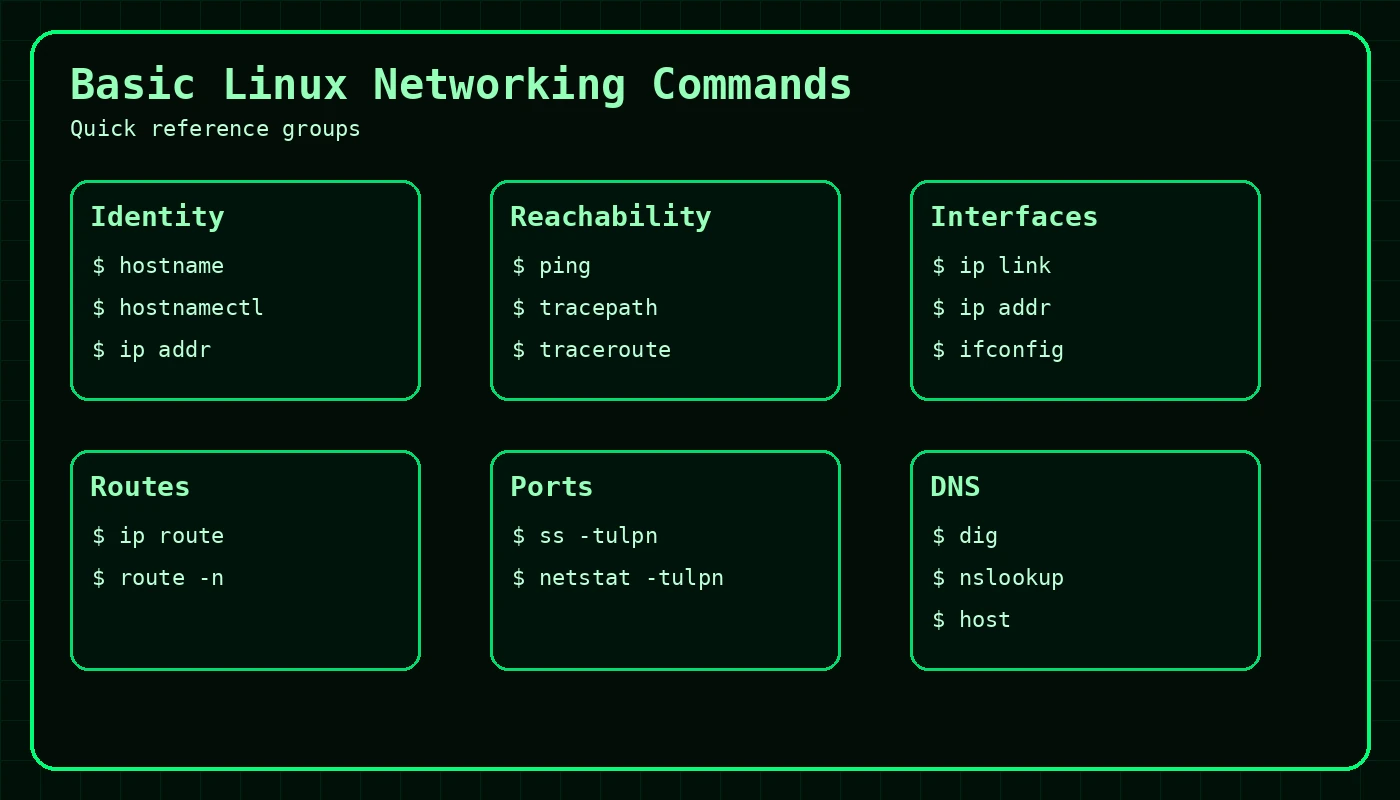
Why these Linux networking commands matter
When a website or server appears “down”, the real issue might be very different from what it first looks like. You may need to confirm the hostname, check IP addresses, test DNS, see whether a service is listening on the right port or confirm whether packets reach the destination at all. The commands in this guide cover those basics.
ifconfig still appears in older tutorials and many hosting conversations, but modern Linux systems often prefer the ip command from iproute2.1. hostname
The hostname command shows the current system hostname. This is useful when you are logged into a server and want to confirm which machine you are on.
hostnameweb01.example.netSee full host information with hostnamectl
hostnamectl Static hostname: web01.example.net
Icon name: computer-vm
Chassis: vm
Machine ID: 0f6d8a3d9a0b4f1d9e0abc1234567890
Boot ID: 6b0e1e9d9f4e4d42bdbd123456789abc
Operating System: AlmaLinux 9.4
CPE OS Name: cpe:/o:almalinux:almalinux:9::baseos
Kernel: Linux 5.14.0-427.35.1.el9_4.x86_64
Architecture: x86-642. ping
ping checks basic network reachability by sending ICMP echo requests. It is a fast way to see whether a host responds and how long the round trip takes.
ping -c 4 example.comPING example.com (93.184.216.34) 56(84) bytes of data.
64 bytes from 93.184.216.34: icmp_seq=1 ttl=56 time=14.2 ms
64 bytes from 93.184.216.34: icmp_seq=2 ttl=56 time=13.8 ms
64 bytes from 93.184.216.34: icmp_seq=3 ttl=56 time=14.4 ms
64 bytes from 93.184.216.34: icmp_seq=4 ttl=56 time=14.1 ms
--- example.com ping statistics ---
4 packets transmitted, 4 received, 0% packet loss, time 3004ms
rtt min/avg/max/mdev = 13.861/14.123/14.449/0.223 msIf ping fails, it does not always mean the host is down. Some servers and firewalls block ICMP responses.
3. ip addr
ip addr show displays network interfaces and their IP addresses. On modern Linux systems, this is often the first command to use when checking interface details.
ip addr show1: lo: <LOOPBACK,UP,LOWER_UP> mtu 65536 qdisc noqueue state UNKNOWN group default
inet 127.0.0.1/8 scope host lo
2: eth0: <BROADCAST,MULTICAST,UP,LOWER_UP> mtu 1500 qdisc fq_codel state UP group default
inet 203.0.113.25/24 brd 203.0.113.255 scope global dynamic eth0
inet6 2001:db8:10::25/64 scope global dynamic mngtmpaddr
3: docker0: <NO-CARRIER,BROADCAST,MULTICAST,UP> mtu 1500 qdisc noqueue state DOWN group default
inet 172.17.0.1/16 scope global docker0This is especially useful when you need to confirm the server IP, identify private versus public addresses, or check whether an interface is actually up.
4. ifconfig
ifconfig is an older tool, but plenty of people still use it and many online examples still reference it. If the net-tools package is installed, you can run:
ifconfigeth0: flags=4163<UP,BROADCAST,RUNNING,MULTICAST> mtu 1500
inet 203.0.113.25 netmask 255.255.255.0 broadcast 203.0.113.255
inet6 2001:db8:10::25 prefixlen 64 scopeid 0x0<global>
ether 52:54:00:12:34:56 txqueuelen 1000 (Ethernet)
RX packets 128547 bytes 98654122 (94.1 MiB)
TX packets 102873 bytes 18345678 (17.4 MiB)
lo: flags=73<UP,LOOPBACK,RUNNING> mtu 65536
inet 127.0.0.1 netmask 255.0.0.0If you see command not found, that usually means the system uses ip instead.
5. ip route
ip route shows the routing table, including the default gateway.
ip routedefault via 203.0.113.1 dev eth0 proto dhcp src 203.0.113.25 metric 100
203.0.113.0/24 dev eth0 proto kernel scope link src 203.0.113.25
172.17.0.0/16 dev docker0 proto kernel scope link src 172.17.0.1If a server can talk to its own network but cannot reach the wider internet, the default route is one of the first things to check.
6. ss
ss helps you see open ports and listening services. It is a modern replacement for many common netstat checks.
ss -tulpnNetid State Recv-Q Send-Q Local Address:Port Peer Address:Port Process
tcp LISTEN 0 128 0.0.0.0:22 0.0.0.0:* users:(("sshd",pid=813,fd=3))
tcp LISTEN 0 511 0.0.0.0:80 0.0.0.0:* users:(("nginx",pid=1256,fd=6))
tcp LISTEN 0 511 0.0.0.0:443 0.0.0.0:* users:(("nginx",pid=1256,fd=7))
udp UNCONN 0 0 127.0.0.53:53 0.0.0.0:* users:(("systemd-resolved",pid=590,fd=13))If you expect a service to be reachable but nothing is listening on the expected port, the issue may be the service itself rather than the network.
7. traceroute or tracepath
These commands show how traffic travels to a destination. They are useful when packets appear to get lost or delayed between networks.
traceroute example.comtraceroute to example.com (93.184.216.34), 30 hops max, 60 byte packets
1 203.0.113.1 (203.0.113.1) 0.601 ms 0.544 ms 0.510 ms
2 198.51.100.14 (198.51.100.14) 2.113 ms 2.049 ms 1.994 ms
3 198.51.100.58 (198.51.100.58) 5.982 ms 6.210 ms 6.143 ms
4 93.184.216.34 (93.184.216.34) 14.233 ms 14.111 ms 14.047 msIf traceroute is not installed, tracepath example.com is often available and easier to use.
8. dig and nslookup
DNS problems are extremely common, so it is worth learning one DNS lookup tool properly. We have a full Dig Command Guide, but here is the short version:
dig +short example.com93.184.216.34nslookup example.comServer: 127.0.0.53
Address: 127.0.0.53#53
Non-authoritative answer:
Name: example.com
Address: 93.184.216.34Use these commands when you need to confirm whether a hostname resolves to the IP you expect.
9. curl
curl is not a low-level network command, but it is one of the best ways to test whether a web service responds.
curl -I https://example.comHTTP/2 200
content-type: text/html; charset=UTF-8
cache-control: max-age=604800
date: Sun, 03 May 2026 14:10:18 GMT
server: nginxThis tells you more than ping does. A host may respond to the network, but your website or API may still be returning an error. curl helps bridge that gap.
Firewall checks with firewalld
If a service is listening locally but still cannot be reached, check whether the firewall allows the service or port.
firewall-cmd --state
firewall-cmd --get-active-zones
firewall-cmd --list-allpublic (active)
interfaces: eth0
services: cockpit dhcpv6-client ssh http https
ports: 8080/tcpFor full examples, see the firewalld Guide and firewalld Cheat Sheet.
Basic networking commands quick reference
| Command | Use | Example |
|---|---|---|
hostname | Show system hostname | hostname |
ping | Test reachability | ping -c 4 example.com |
ip addr | Show interface addresses | ip addr show |
ifconfig | Legacy interface view | ifconfig |
ip route | Show routes and gateway | ip route |
ss | Show listening ports | ss -tulpn |
traceroute | Show network path | traceroute example.com |
dig | DNS lookup | dig +short example.com |
curl | Test HTTP or HTTPS response | curl -I https://example.com |
Keep building your networking skills
A simple network troubleshooting order
# 1. Confirm local IP details
ip addr

# 2. Check the default route
ip route

# 3. Test basic reachability
ping -c 4 1.1.1.1

# 4. Test DNS resolution
dig example.com A +short

# 5. Test the web service
curl -I https://example.com

# 6. Check listening services
ss -tulpn
This order separates local network issues, routing issues, DNS issues and application issues.
Frequently Asked Questions
What replaced ifconfig on modern Linux?
The ip command from iproute2 is the modern replacement for many ifconfig and route tasks.
How do I see listening ports on Linux?
Use ss -tulpn to show TCP and UDP listening sockets with process details where permitted.
How do I test DNS from Linux?
Use dig, for example dig example.com A +short.
How do I test a website from the terminal?
Use curl -I https://example.com to fetch response headers.