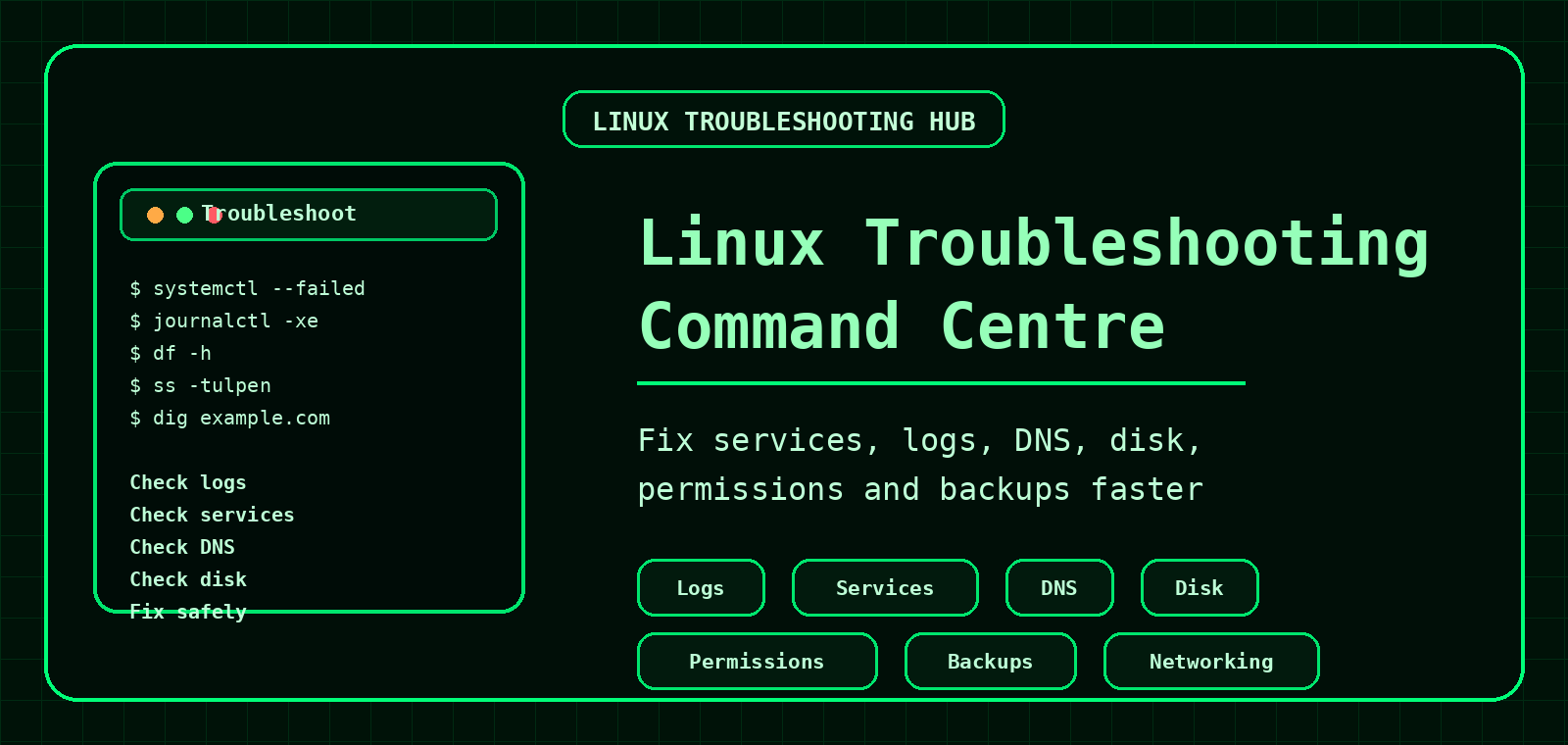
Linux Troubleshooting Hub
This hub pulls together the most useful CommandLineQuiz guides for diagnosing Linux server issues: logs, failed services, DNS problems, disk usage, permissions, web server errors, backups and practical command line checks.
Linux troubleshooting quick checklist
When a Linux server starts misbehaving, avoid guessing. Start with the basics, then narrow the fault.
| Check | Command | What it tells you |
|---|---|---|
| Failed services | systemctl --failed | Shows units that failed to start or crashed. |
| Service status | systemctl status nginx | Shows service state and recent log lines. |
| Recent logs | journalctl -xe | Shows recent systemd journal messages with context. |
| Disk usage | df -h | Shows whether a filesystem is full. |
| Large directories | du -h --max-depth=1 /var | sort -h | Finds directories using the most space. |
| Listening ports | ss -tulpen | Shows services listening on network ports. |
| DNS lookup | dig example.com | Checks DNS records and resolver responses. |
Common Linux server issues and where to start
Website down
Check HTTP status, response time, service status, web logs, DNS and firewall/listening ports.
Build uptime monitorFirewall or port blocked
Use firewall-cmd, ss and service checks to confirm whether traffic is allowed and something is listening.
Permission denied
Check ownership, mode bits, directories, ACLs and application user context.
Permissions guideBackup failed
Check backup service logs, rsync output, SSH key access and destination disk space.
Backup automation guideBest CommandLineQuiz troubleshooting guides
Search Logs for Errors on Linux
Use grep, tail and common log paths to find issues quickly.
cPanel Log Locations
Find Apache, Exim, FTP, cPanel and ModSecurity logs on cPanel servers.
Open guidesystemd Services, Timers and Logs
Understand service status, failed units, timers and journal logs.
Open guidedig Command Guide
Diagnose DNS records, resolvers, propagation and authoritative answers.
Open guidefirewalld Guide
Learn zones, services, ports, permanent rules, reloads and firewall troubleshooting.
Open guideAutomate Linux Backups
Use rsync and systemd timers to build logged, scheduled backup jobs.
Open guideWebsite Uptime Monitor
Build a Bash script using curl to check HTTP status codes, response time, multiple URLs and logs.
Open guideApache Log Analysis Cheat Sheet
Quick commands for status codes, top IPs, user agents and error hunting.
Open cheat sheetPermissions Builder
Build safe chmod commands and understand Linux permission modes.
CompTIA Linux+ Practice Quiz
Test practical Linux troubleshooting and administration knowledge.
Start quizUseful Linux troubleshooting commands
# service checks
systemctl status nginx
systemctl --failed
journalctl -u nginx -n 100 --no-pager

# logs
tail -f /var/log/messages
grep -Rni "error" /var/log/

# disk usage
df -h
du -h --max-depth=1 /var | sort -h

# networking
ip address show
ip route
ss -tulpen

# DNS
dig example.com
dig MX example.com
dig @1.1.1.1 example.com

# permissions
namei -l /var/www/example.com/public_html
stat index.phpSuggested troubleshooting learning path
- Start with Search Logs for Errors on Linux.
- Learn service management with the systemd guide.
- Practise DNS checks with the dig command guide.
- Review permissions using the Linux permissions guide and permissions builder.
- Build safer backup habits with rsync and systemd backups.
- Test your knowledge with the Linux+ practice quiz.
Start with logs
If you are not sure where to start, begin with the logs. They usually know what happened, and unlike users, they do not describe everything as “the server is broken”.
A practical Linux troubleshooting order
- Confirm the symptom and affected service.
- Check status with
systemctl status. - Read recent logs with
journalctl,tailorgrep. - Check disk, memory, CPU and network basics.
- Make one change at a time and record what changed.
Start with log searches, then use the systemd guide, disk usage guide and networking commands guide.
Frequently Asked Questions
Where should I start troubleshooting Linux?
Start with the symptom, then check service status, logs, disk space, memory, CPU and networking.
Which command checks Linux services?
systemctl status service-name checks the state of a systemd service.
Which command checks recent service logs?
journalctl -u service-name -n 100 --no-pager shows recent logs for a service.
Why should I make one change at a time?
Changing one thing at a time makes it much easier to identify what fixed or worsened the issue.