Advanced Grep Techniques
grep is one of the most useful Linux commands for searching logs, code, configuration files and command output. Most people learn basic searches quickly, but the real power comes from combining grep with options like -E, -R, -C, -v, -i and tools like awk, sort and zgrep.
This guide focuses on practical advanced grep techniques for troubleshooting websites, servers and application logs.
grep -Ei "error|warning|failed|fatal" file.log for flexible error searches, grep -Rin for recursive searches with line numbers, and grep -C 3 when you need context around a match.1. Search case-insensitively with line numbers
When searching logs, case often varies. You may see error, Error or ERROR. Use -i to ignore case and -n to show line numbers.
grep -in "error" app.logThis makes it easier to find the exact line in a large file.
2. Search for multiple patterns with grep -E
Use -E for extended regular expressions. This allows clean multiple-pattern searches with |.
grep -Ei "error|warning|failed|fatal|exception" app.log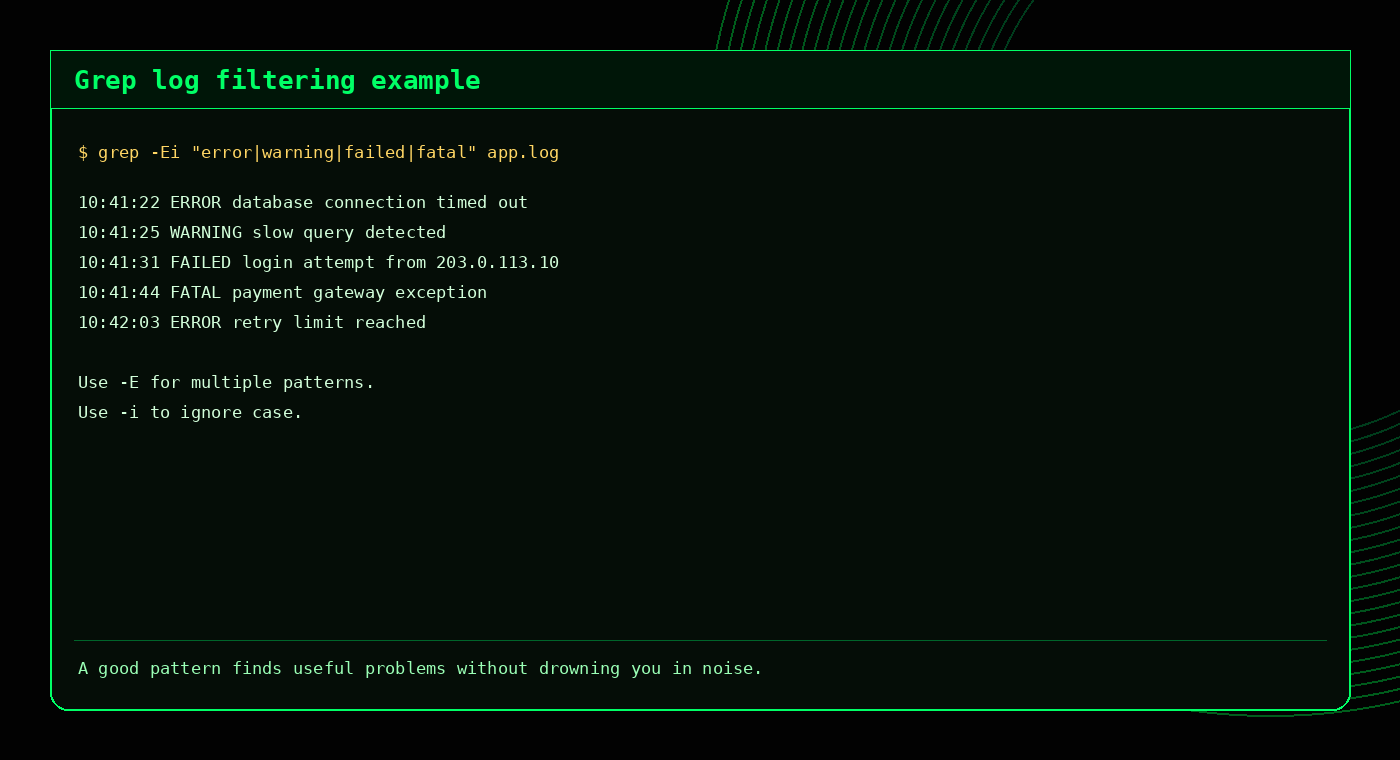
grep -Ei is one of the quickest ways to find common error terms in logs.3. Show context around matches
A single matching line often does not tell the full story. Context options help you see what happened before and after the match.
After match
grep -A 5 "Fatal error" error_logShows five lines after each match.
Before match
grep -B 5 "Fatal error" error_logShows five lines before each match.
Before and after
grep -C 3 "Fatal error" error_logShows three lines before and after each match.
Ignore case with context
grep -iC 3 "fatal error" error_logUseful when logs vary in capitalisation.
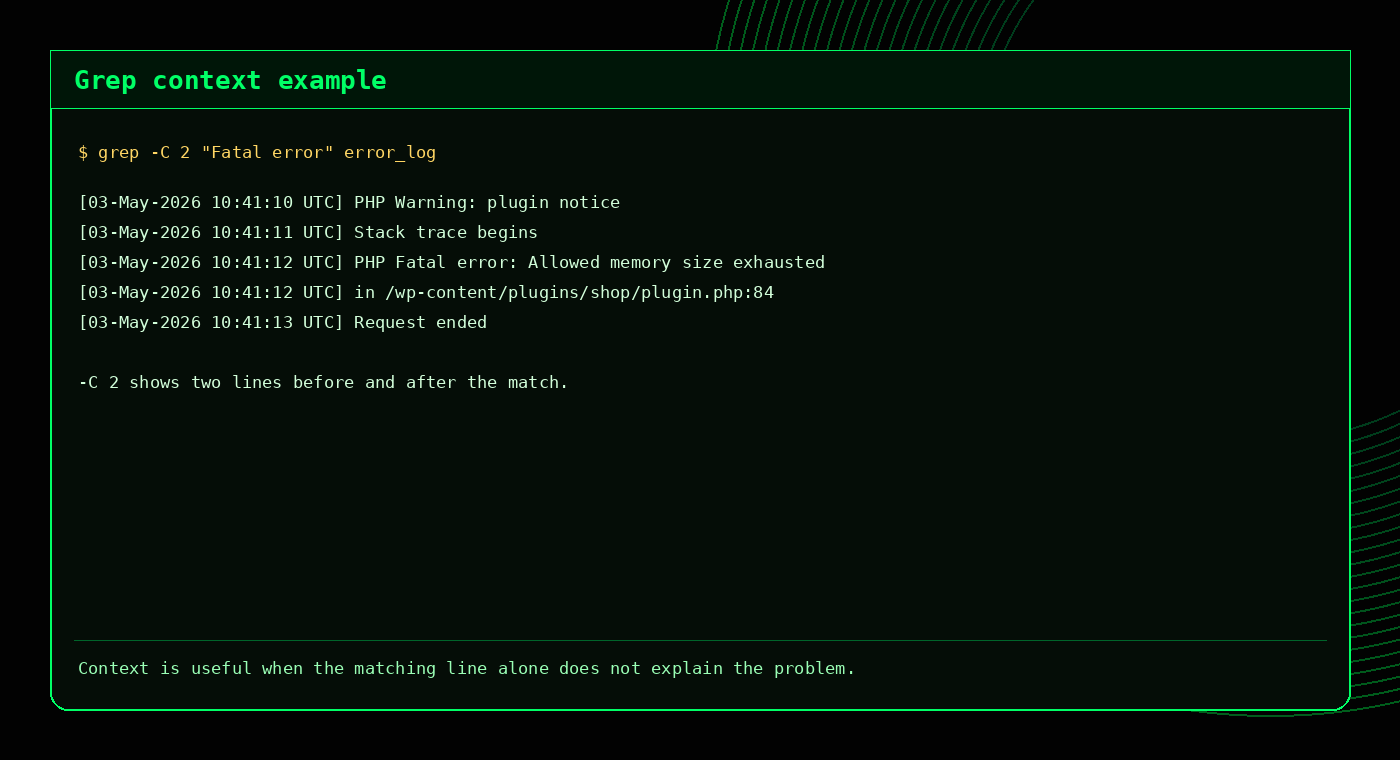
4. Recursive grep for code and configuration searches
Recursive search is useful when you need to search a whole directory tree, such as a website root or configuration directory.
grep -Rin "database error" /home/user/public_htmlUseful flags:
| Flag | Meaning | Example |
|---|---|---|
-R | Recursive search | grep -R "TODO" . |
-i | Ignore case | grep -Ri "error" . |
-n | Show line numbers | grep -Rn "function" . |
-l | Show matching filenames only | grep -Rl "wp_login" . |
5. Include or exclude file types
When searching code, avoid wasting time in cache files, minified JavaScript or irrelevant directories.
Only PHP files
grep -Rin --include="*.php" "deprecated" .Exclude minified JS
grep -R "TODO" . --exclude="*.min.js"Exclude a directory
grep -R "error" . --exclude-dir="cache"Show matching files only
grep -Rl --include="*.php" "wp_remote_get" .6. Invert matches with grep -v
grep -v shows lines that do not match. This is useful for removing noise from logs.
grep -i "error" app.log | grep -vi "known harmless"You can also exclude bots from an access log view:
grep -vi "bot" access.log7. Search compressed logs with zgrep
Older logs are often compressed. Use zgrep to search them without extracting first.
zgrep -i "error" error_log.gz
zgrep " 500 " access.log.gz
zgrep -Ei "fatal|warning|failed" *.gz
Disk space tip
Avoid extracting large log archives unless you need to. Searching compressed files directly is often safer and faster.
8. Use grep with access logs
grep is excellent for narrowing down access logs before handing the results to awk, sort and uniq.
Find 500 responses
grep " 500 " access.logFind 404 responses
grep " 404 " access.logFind WordPress login hits
grep "wp-login.php" access.logFind XML-RPC hits
grep "xmlrpc.php" access.log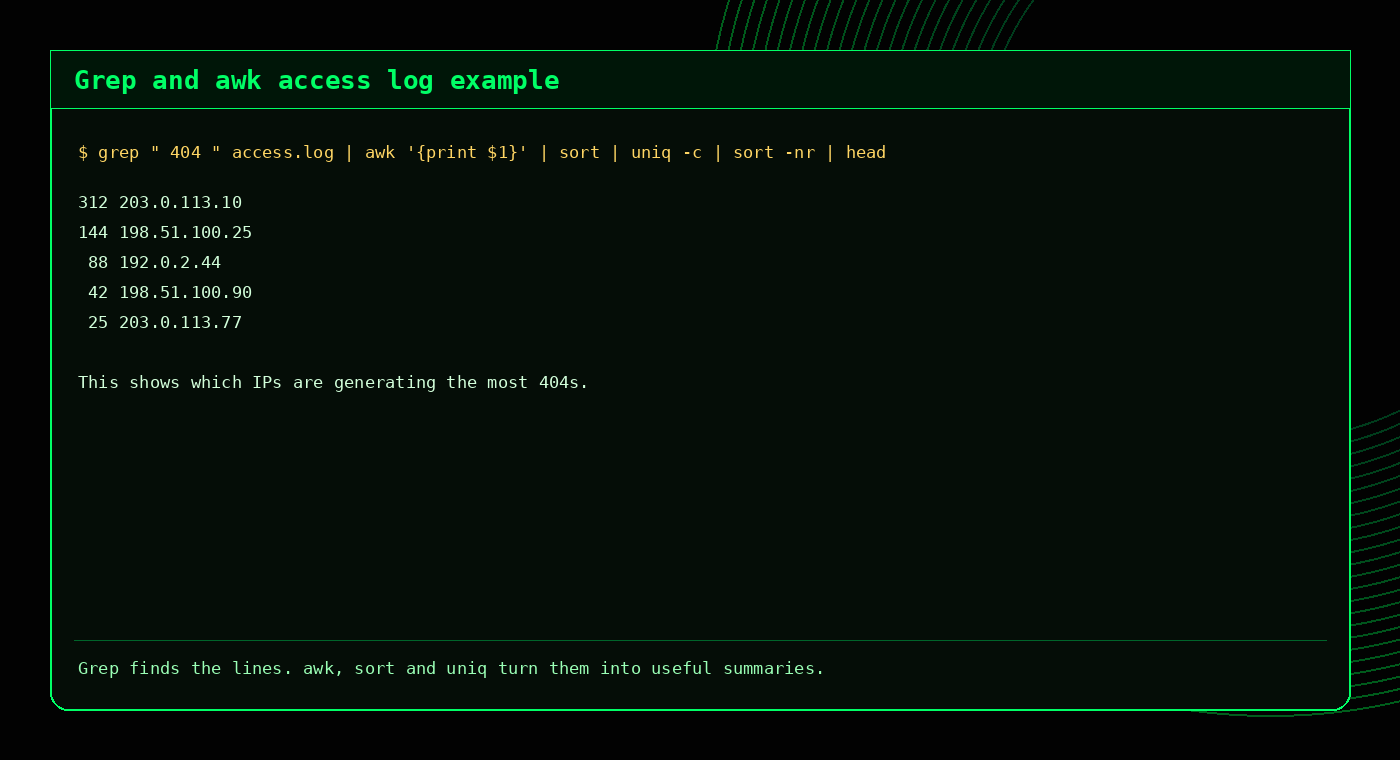
9. Count matches quickly
Use -c to count matching lines.
grep -c "error" app.log
grep -ic "error" app.log
grep -Eic "bot|crawl|spider" access.log
This is useful when you need a quick sense of scale before digging deeper.
10. Common grep mistakes
- Forgetting quotes: quote patterns like
"*.log"or"error|warning". - Using basic grep when you need
-E: alternatives with|are cleaner with extended regex. - Missing case variations: use
-iwhen searching logs. - Searching too broadly: use
--include,--excludeand--exclude-dir. - Assuming grep explains the cause: grep finds evidence. You still need to interpret it.
Advanced grep quick reference
| Task | Command |
|---|---|
| Ignore case | grep -i "error" app.log |
| Show line numbers | grep -n "error" app.log |
| Recursive search | grep -R "error" . |
| Multiple patterns | grep -E "error|warning|failed" app.log |
| Show context | grep -C 3 "fatal" error_log |
| Invert match | grep -v "bot" access.log |
| Compressed logs | zgrep -i "error" error_log.gz |
FAQ
How do I search logs for multiple error terms?
grep -Ei "error|warning|failed|fatal|exception" app.logHow do I grep recursively?
grep -Rin "search term" /path/to/searchHow do I show lines before and after a grep match?
grep -C 3 "Fatal error" error_logHow do I search compressed logs?
zgrep -i "error" error_log.gzHow do I count grep matches?
grep -c "error" app.logRelated tools and guides
External references
Practical grep recipe for log investigations
# Search for common error terms
grep -Ei "error|warning|failed|timeout" app.log

# Show line numbers
grep -Ein "error|warning|failed|timeout" app.log

# Show context around matches
grep -Ein -C 3 "database|mysql|timeout" app.log

# Search recursively but skip noisy folders
grep -RIn --exclude="*.gz" --exclude-dir="cache" "fatal error" /var/www/example
For a step-by-step tool, use the Grep Command Builder and practise with the Grep Quiz.
Frequently Asked Questions
What does grep -i do?
grep -i performs a case-insensitive search.
How do I show line numbers with grep?
Use grep -n to include line numbers in the output.
How do I search recursively with grep?
Use grep -R or grep -r followed by the pattern and path.
How do I show lines around a grep match?
Use -A for after, -B for before or -C for context on both sides.