Top 10 Linux Commands for Troubleshooting Websites
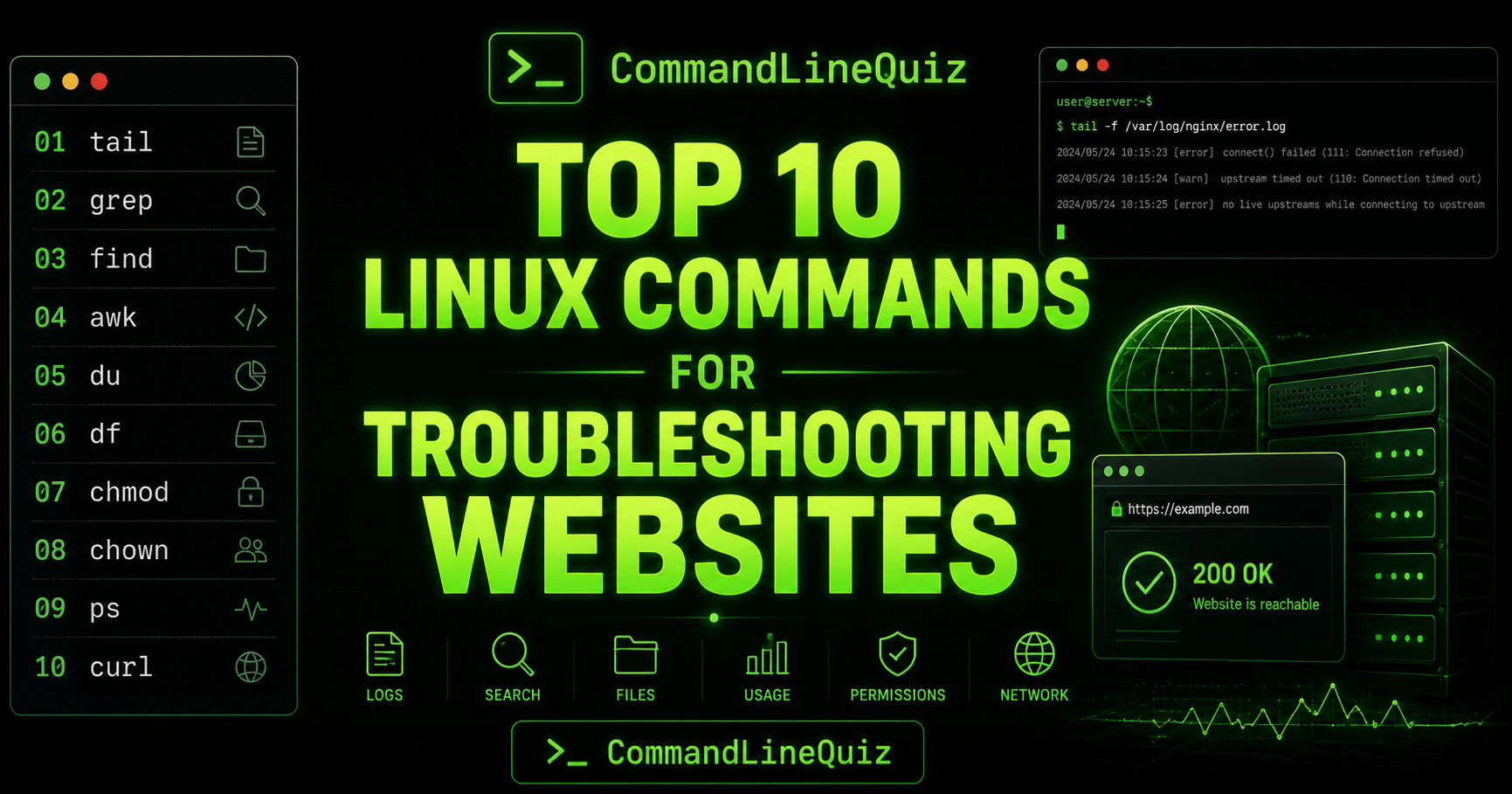
A quick visual guide to the most useful Linux commands for diagnosing website issues, from logs and permissions to processes and HTTP response checks.
When a website is slow, broken, showing errors or using too much disk space, Linux commands can help you find the cause quickly. You do not always need a complex monitoring stack. Sometimes a few well-used terminal commands are enough to point you in the right direction.
This guide covers 10 practical Linux commands for troubleshooting websites, especially on hosting, cPanel, Apache, PHP and WordPress-style environments. Each command includes real examples and links to tools where you can practise or build commands safely.
Quick answer: the top 10 commands
tail    # view recent log entries
grep    # search logs and files
find    # locate files by name, size, date or permissions
awk     # summarise columns and access logs
du      # find disk usage by folder
df      # check filesystem free space
chmod   # fix file permissions
chown   # fix file ownership
ps      # inspect running processes
curl    # test HTTP responses from the command line
If you want to practise, try the Linux command quizzes, or use the command builders to create useful commands without memorising every flag.
1. tail: check recent log entries
tail shows the end of a file. It is one of the quickest ways to check recent errors in logs.
# Show the last 50 lines of a log
tail -50 error_log

# Watch a log live
tail -f error_log

# Watch an Apache log live
tail -f /usr/local/apache/logs/error_log
Use tail -f when you want to reproduce an issue in the browser and watch the log update in real time.
Common mistake: watching the wrong log file. On hosting servers, a website may have a local PHP error log, an Apache error log, and access/domlogs.
2. grep: search logs for errors
grep searches text. It is essential for finding errors, warnings, failed requests, bot traffic and suspicious patterns.
# Search for errors
grep -i "error" error_log

# Search for common failure terms
grep -Ei "error|warning|failed|fatal|exception" app.log

# Find 404 and 500 responses in an access log
grep -E " 404 | 500 " access.log

# Search recursively
grep -Rin "fatal error" /home/user/public_html
Use the Grep Command Builder to build grep commands, or test search patterns in the Regex Tester.
Common mistake: forgetting -i and missing matches like Error, ERROR or error.
3. find: locate problem files
find searches for files and directories by name, size, date, owner, permissions and more.
# Find large files
find /home/user -type f -size +500M -exec ls -lh {} \;

# Find recently modified PHP files
find /home/user/public_html -type f -name "*.php" -mtime -1

# Find log files
find /home/user -type f -name "*.log"

# Find world-writable files
find /home/user/public_html -type f -perm -002
This is useful when investigating disk usage, suspicious file changes, permission problems or unexpected files in a web root.
Build these safely with the Find Command Builder, or read Mastering the Find Command.
Common mistake: using -delete before previewing results. Always run the command without delete first.
4. awk: summarise access logs
awk is brilliant for pulling columns out of logs and command output. It is especially useful with Apache access logs and cPanel domlogs.
# Show top IP addresses
awk '{print $1}' access.log | sort | uniq -c | sort -nr | head

# Show top requested URLs
awk '{print $7}' access.log | sort | uniq -c | sort -nr | head

# Show status code totals
awk '{print $9}' access.log | sort | uniq -c | sort -nr

# Count requests from a specific IP
grep '^203.0.113.10 ' access.log | awk '{print $7}' | sort | uniq -c | sort -nr | head
For cPanel-specific examples, see the cPanel Domlog Guide. You can also practise with the AWK Command Quiz.
Common mistake: assuming every log format has the same fields. Always check a sample line first.
5. du: find what is using disk space
du shows disk usage for files and directories. It is one of the first commands to use when a hosting account or server partition is filling up.
# Show sizes in the current directory
du -sh *

# Show one level of directory sizes
du -h --max-depth=1

# Sort by size
du -sh * | sort -h

# Show largest folders under /home/user
du -h --max-depth=1 /home/user | sort -h
This helps find large backups, cache folders, log files, uploads or forgotten archives.
Common mistake: running du from the wrong directory and thinking the output represents the whole account.
6. df: check filesystem free space
df shows filesystem-level disk usage. It answers a different question from du.
# Show filesystem usage
df -h

# Show inode usage
df -ih
Use df -h to see if a partition is full. Use df -ih to check inode usage. A server can run out of inodes even when there is still disk space available.
du vs df:
dfshows free space on filesystems.dushows usage by files and directories.
Common mistake: only checking disk space and forgetting inodes.
7. chmod: fix file permissions
chmod changes file permissions. Incorrect permissions can cause 403 errors, upload failures or scripts failing to run.
# Common website file permission
chmod 644 file.php

# Common directory permission
chmod 755 public_html

# Make a script executable
chmod +x script.sh

# Remove world-writable permission
chmod o-w file.php
For websites, common starting points are 644 for files and 755 for directories, but the correct value depends on the application and hosting environment.
Learn more in Understanding Linux Permissions or practise with the Permissions Quiz.
Common mistake: using chmod 777 as a quick fix. It can create a security risk.
8. chown: fix file ownership
chown changes file ownership. On hosting accounts, wrong ownership can cause permission errors even when numeric permissions look correct.
# Change owner
chown user file.php

# Change owner and group
chown user:group file.php

# Change ownership recursively
chown -R user:group public_html
Be careful with recursive ownership changes. Always confirm the path first:
pwd
ls -ld public_html
ls -l public_html | head
Common mistake: recursively changing ownership from the wrong directory. That is how small mistakes put on a cape and become incidents.
9. ps: inspect running processes
ps shows running processes. It can help identify high CPU usage, stuck scripts, suspicious commands or long-running PHP processes.
# Show all processes
ps aux

# Search for PHP processes
ps aux | grep php

# Sort processes by CPU
ps aux --sort=-%cpu | head

# Sort processes by memory
ps aux --sort=-%mem | head
This is useful when a website is slow and you suspect heavy PHP, backup, cron or import processes.
Common mistake: killing processes without understanding what they are. Identify the user, command and context first.
10. curl: test website responses
curl lets you test a URL from the command line. It is useful for checking HTTP status codes, redirects, headers and basic response behaviour.
# Show response headers
curl -I https://example.com

# Follow redirects
curl -IL https://example.com

# Show status code only
curl -o /dev/null -s -w "%{http_code}\n" https://example.com

# Test a specific host header
curl -I -H "Host: example.com" http://203.0.113.10
This can help confirm whether an issue is DNS, SSL, redirects, caching, headers or application response related.
Common mistake: testing only in a browser. Browsers cache aggressively. curl gives a cleaner view.
Bonus command: journalctl
On many modern Linux systems, system and service logs are available with journalctl.
# Show recent errors from this boot
journalctl -p err -b

# Show logs for a service
journalctl -u nginx --since "1 hour ago"

# Follow logs live
journalctl -f
This is useful for services managed by systemd, such as Nginx, MariaDB, PHP-FPM or other daemons.
Website troubleshooting workflow
When a website has a problem, use a simple process:
- Check the response: use
curl -Ito confirm status code and redirects. - Check recent logs: use
tailandgrep. - Look for traffic patterns: use
awkagainst access logs. - Check disk space: use
df -handdu -sh *. - Check permissions and ownership: use
ls -l,chmodandchown. - Check running processes: use
ps aux. - Review recent file changes: use
find.
curl -IL https://example.com
tail -50 error_log
grep -Ei "error|warning|fatal" error_log
df -h
du -sh *
ps aux --sort=-%cpu | head
Common website troubleshooting mistakes
- Only checking the browser and ignoring command-line tests.
- Looking at access logs but not error logs.
- Checking disk space but not inode usage.
- Using
chmod 777instead of fixing ownership or correct permissions. - Deleting files before confirming what they are.
- Forgetting that Cloudflare, LiteSpeed or browser cache may hide changes.
- Running recursive commands from the wrong directory.
FAQ
What Linux command should I use first when a website is down?
Start with curl -I https://example.com to check the HTTP response, then check recent error logs with tail and grep.
How do I find website errors in Linux logs?
grep -Ei "error|warning|failed|fatal" error_logHow do I find what is using disk space?
du -h --max-depth=1 | sort -hHow do I find large files on a website account?
find /home/user -type f -size +500M -exec ls -lh {} \;How do I check if permissions are wrong?
Use ls -l to inspect ownership and permissions, then use chmod or chown carefully if needed.
How do I find bot traffic?
grep -Ei "bot|crawl|spider|slurp" access.logWhat command shows top IPs in access logs?
awk '{print $1}' access.log | sort | uniq -c | sort -nr | headRelated tools and practice
Grep Command Builder Find Command Builder Regex Tester Bash Script Checker Search Logs for Errors on Linux cPanel Domlog Guide Understanding Linux Permissions Linux Command Quizzes Linux Cheat SheetsExternal references
Use the commands in this order
# 1. Check HTTP response
curl -I https://example.com

# 2. Check DNS
dig example.com A +short

# 3. Check listening ports
ss -tulpn | grep -E ':80|:443'

# 4. Check service state
systemctl status nginx

# 5. Check recent logs
journalctl -u nginx -n 80 --no-pager

# 6. Check disk space
df -h
This separates DNS, network, service, application and disk-related issues. Much cleaner than poking the server with a stick and hoping it confesses.
Frequently Asked Questions
What is the first command to troubleshoot a website?
curl -I is a good first check because it shows the HTTP response headers and status code.
How do I check if DNS resolves?
Use dig example.com A +short to check the current A record answer.
How do I check if a web server is listening?
Use ss -tulpn and look for ports 80 and 443.
How do I check web server logs with systemd?
Use journalctl -u nginx or journalctl -u httpd depending on the service.